















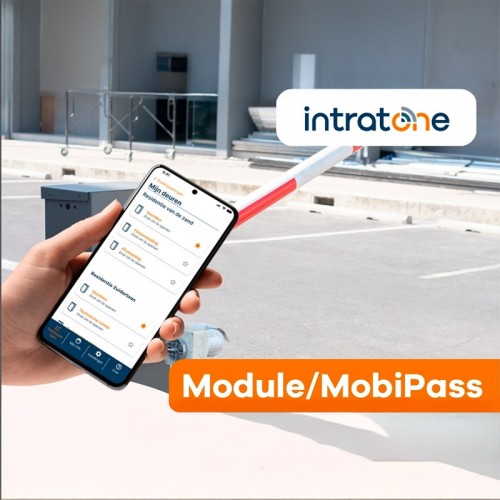
Unlock the potential of your Intratone Access Control with MobiPass - Simple, Quick, Efficient!
With 2G services on their way out, Intratone have introduced a new service named 'MobiPass'. This is an App enabled feature for their Access Control and Door Entry operating on 4G. Their older service, 'Mobile Key', will no longer be available as of 01/05/26. This is due to numerous network providers switching off their 2G services which has persistently been affecting the functionality and compatibility of their modules. To enhance the service, 'MobiPass' has been introduced to their online platform and app where at the touch of a button, activations can be sent to gates, doors, & barriers with no interruptions.
How Does it Work?
To use 'MobiPass', you will first need to verify that your hardware is compatible. Any Intratone system operating from a 4G / 5G module will permit this service to be used. If you have an older GSM module operating solely on 2G, then you will need to upgrade your equipment prior to using this feature.
Not sure if your hardware is compatible? Head to the online management portal, log in, and click 'Modules that need to be replaced'. This will populate a list of legacy product which may require upgrading to the latest 4G services.
When do I need to pay for a license?
Paid licenses are required for any Access Control products from Intratone that you wish to use the 'MobiPass' with. If you are using Intratone's Door Entry / Intercom panels, your system will automatically enable MobiPass on the portal at no additional cost for whom you just need to enable the users for.
How do I apply MobiPass to my Access Control?
To register your 'MobiPass' service to a 4G Access Control module, you will first need to access your management portal. Then, click on the site you wish to add this to, then click 'Central Units' on the left hand side. This will populate a list of the modules which are permitted to add the service with a column labelled 'MobiPass'. Click +Add next to the module you wish to register this to. This will take you to the page below where you will need to fill in the details from the card supplied..
Once you have entered the details, you can then begin to add users for this service via Apartment>Create and then enter the residents information for them to login into the app with..